Startup Options
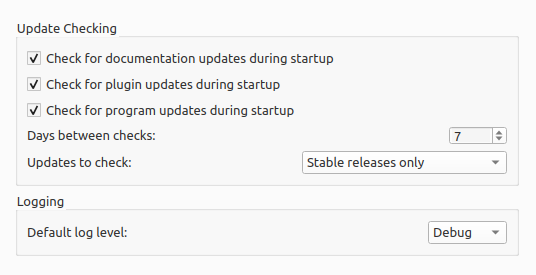
Check for documentation updates during start-up
This option determines whether or not Picard will automatically check for available versions and languages on ReadTheDocs during startup in order to provide the best match when displaying a help page. If this is disabled, the latest version of the documentation will be displayed in English in your web browser.
If the option is disabled, a popup message will be displayed during startup asking if you want to enable the documentation checking. The message also includes an option to disable the popup from displaying in the future. The popup can also be enabled or disabled through a setting in the Opties voor de gebruikersinterface section.
Check for plugin updates during start-up
This option determines whether or not Picard will automatically check for plugin updates during startup. If this is enabled and an update to an installed plugin is available, a notification icon will be displayed in the status bar. Clicking the icon will open the Plugins options page where you can review the available plugin updates and select which ones to install.
Check for program updates during start-up
This option determines whether or not Picard will automatically check for program updates during startup. In any case, you can have Picard check for program updates at any time using .
Days between checks
This option allows you to limit the automatic program update checking by selecting the interval, in days, between checks. Set this to 1 if you want to check daily, 7 for weekly checks, and so on. Note that this only applies if the “Check for program updates during start-up” option is enabled.
Updates to check
This option allows you to select which levels of program update to check. Your options are:
Stable releases only
Stable and Beta releases
Stable, Beta and Dev releases
For example, if you subscribe to “Stable releases only” you will not be notified if a new Beta or Dev release is issued.
Notitie
The program update checking related settings and command may not be available when Picard is distributed as a package. In that case, the user should check with the maintainer of the package to determine when an update is available.
Default Log Level
This option allows you to select the log level set when Picard is started. The log level determines the amount of information that is recorded in the log. The available log levels are:
Error- only error messages are logged
Warning- warning messages and error messages are logged
Info- informational messages, warning messages and error messages are logged
Debug- detailed debug information, informational messages, warning messages and error messages are loggedIn general, it is recommended to set the log level to
Infofor normal use to avoid excessive logging, and only useDebugwhen troubleshooting specific issues to ensure that all log entries are captured. Note that setting the log level toDebugmay result in a large amount of log output, which can be useful for troubleshooting but may also make it harder to find relevant information in the log. If you want to see less detailed information, you can set it toWarningorError.Please see Appendix D: Log Viewer for more information about viewing or saving the log using the log viewer, and how to change the log level during a session.
Notitie
Changing the setting for the default will also change the log level for the current session, so if you change the level to
Warning, then only Warning and Error level events will be logged from that point forward. The log level will be reset to the default value selected in this option automatically each time Picard is started, unless the--debugcommand line option is specified or thePICARD_DEBUGenvironment variable is set.