Colors
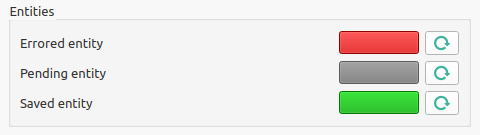
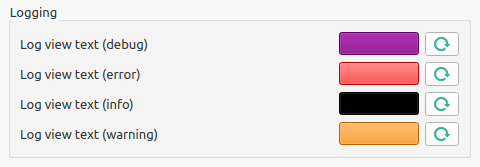
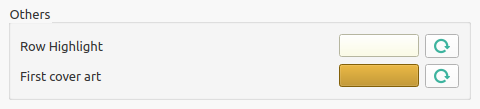
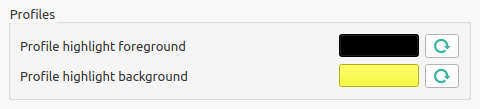
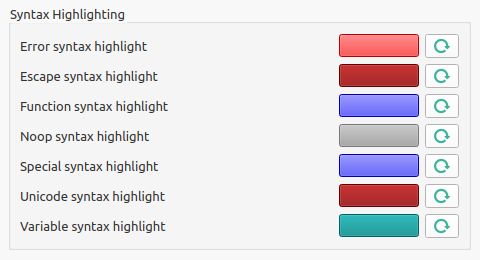
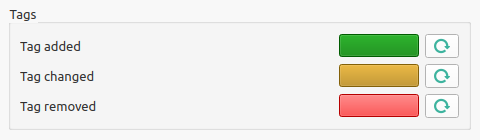
This section allows you to customize the various colors used in the Picard user interface. To change a color, simply click on the color block currently displayed for the desired text condition to bring up a selection dialog, then pick your desired color. To reset the color to the default, click the circular icon to the right of the color. The colors can be changed for the following text conditions.
Note
Separate sets of color selections are maintained for the light and dark themes. The colors for the currently displayed theme are the ones displayed for editing.