Manual Lookup
The steps to follow to manually lookup an album on MusicBrainz are:
Step 1
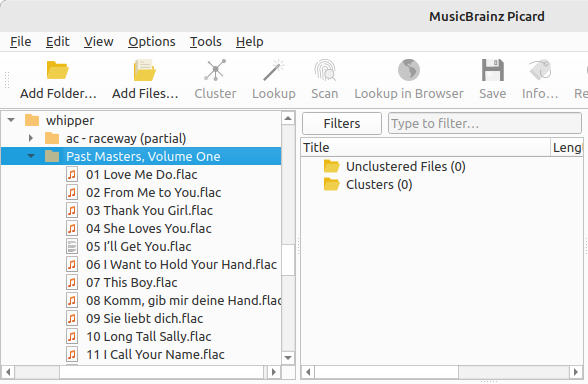
Add your files using or .
For ease of use it is recommended to use the internal File Browser to manage file system interactions. This is enabled from .
Step 2
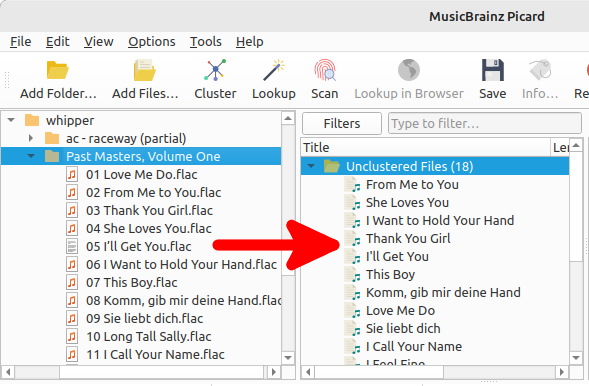
Drag the selected directory or files to the “Unclustered Files” folder, and wait for Picard to process the files - the names will turn from grey to black.
Step 3
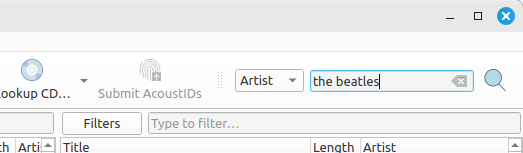
Enter your search information into the search box and select the type of records to search, then click the magnifying glass symbol to initiate the search. This will open the MusicBrainz website in your browser.
Step 4
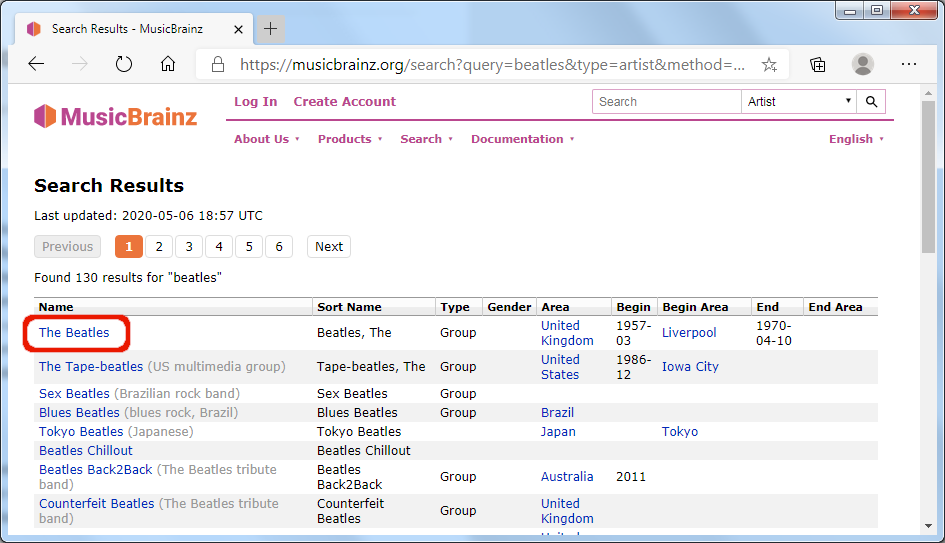
Continue to drill down by clicking on the appropriate links until you get to the release that you want to retrieve.
Step 5
Use the green arrow  to load the information for a release into Picard.
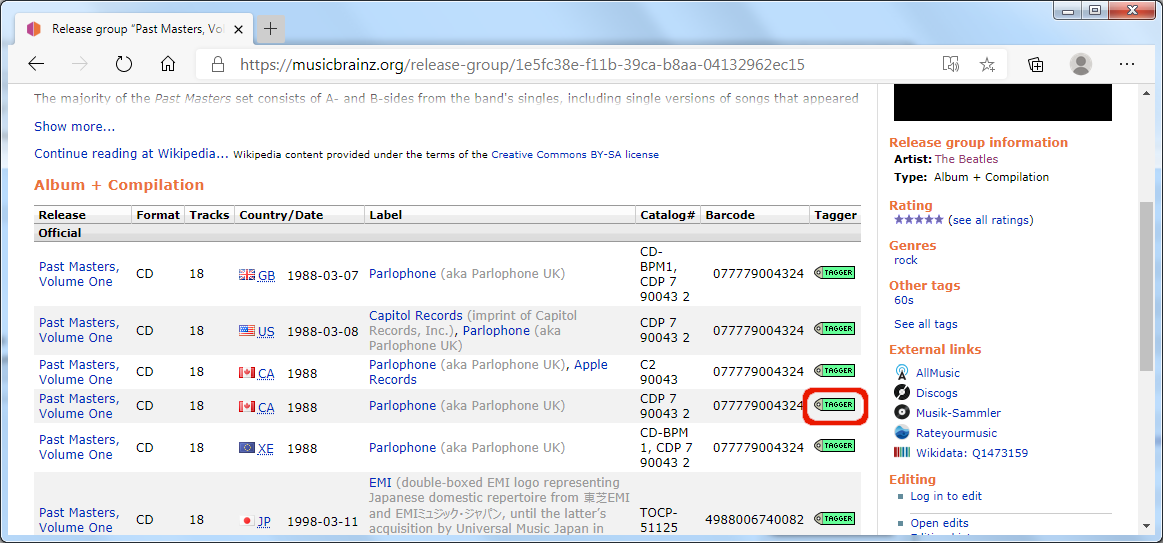
Step 6
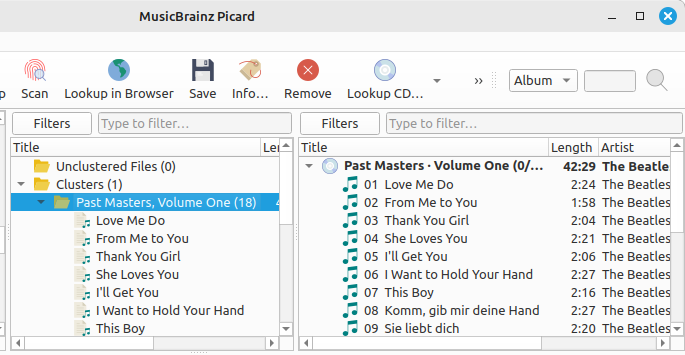
A music symbol in front of a track number in the right-hand pane indicates that there has been no file assigned to the track.
Note
If you enter a link to the desired entry (e.g.: https://musicbrainz.org/release/9383a6f5-9607-4a36-9c68-8663aad3592b) in the search box in Picard, the entry will be loaded directly without opening a browser window.