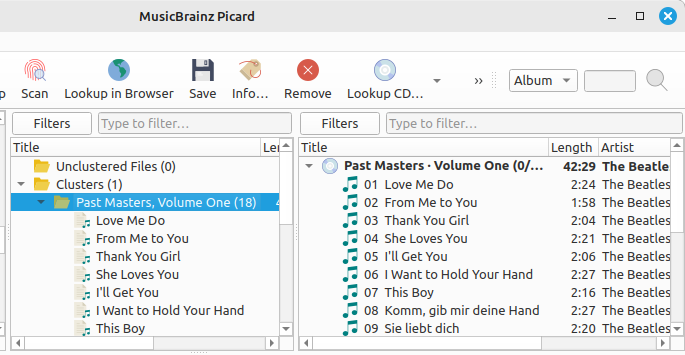
Lookup in Browser
The steps to follow to manually lookup an album on MusicBrainz are:
Step 1
Add your files using or .
For ease of use it is recommended to use the internal File Browser to manage file system interactions. This is enabled from .
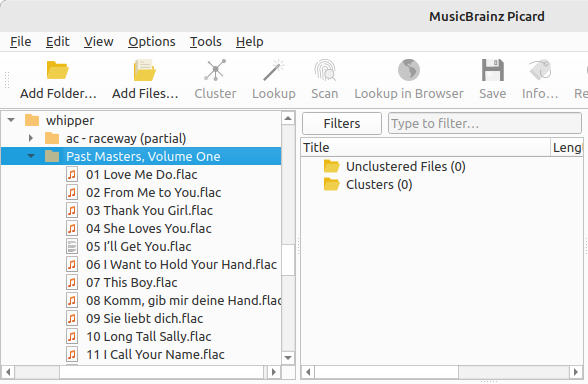
Step 2
Drag the selected directory or files to the “Unclustered Files” folder, and wait for Picard to process the files - the names will turn from grey to black.
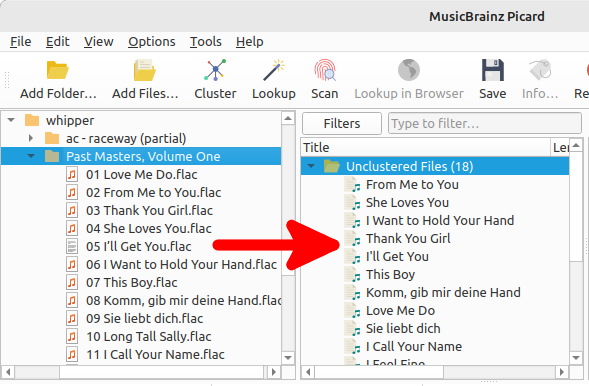
Step 3
Use to group the files into album clusters if you want lookup a cluster.
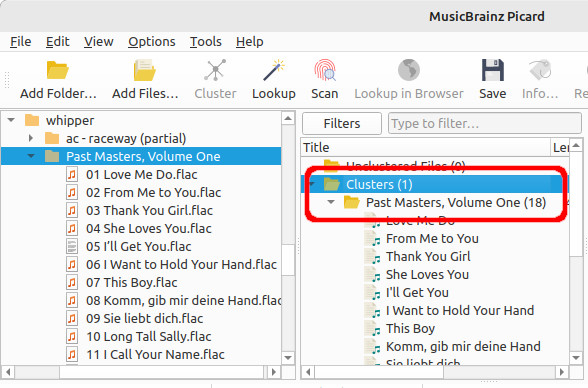
Step 4
Select a file or clustered album and use to initiate the search in your browser using the currently available metadata.
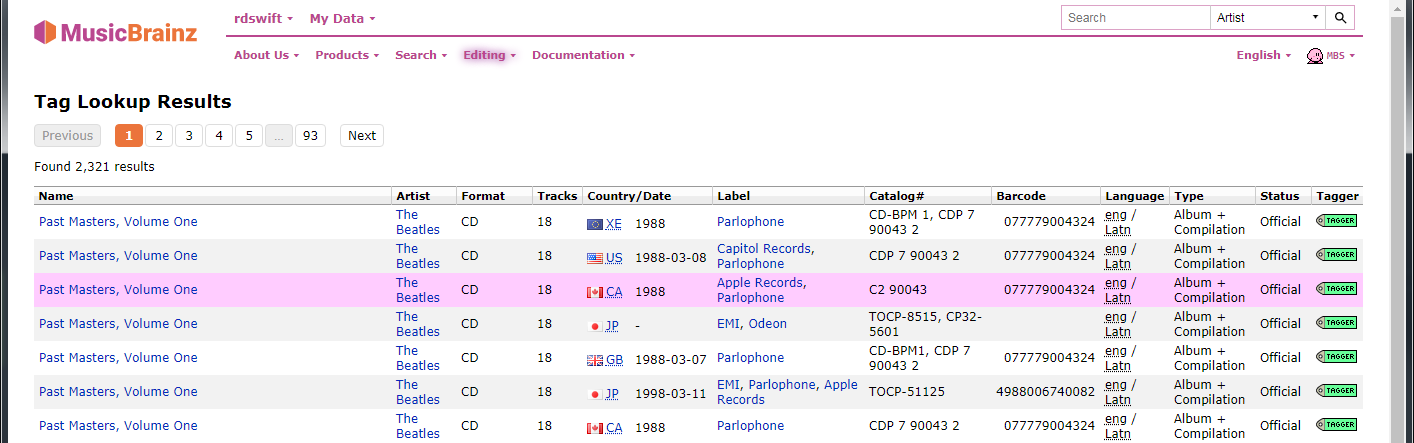
Step 5
If you want to revise or refine your search criteria, make the desired changes at the bottom of the web page and click the “Search” button to re-initiate the search.
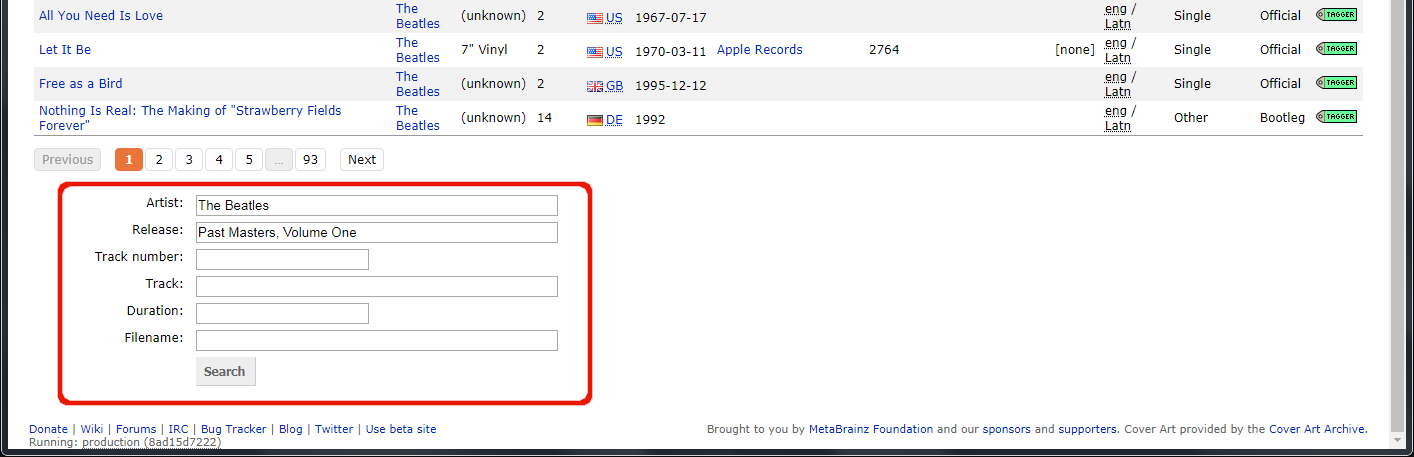
Step 6
Use the green arrow  to load the information for a release into Picard.
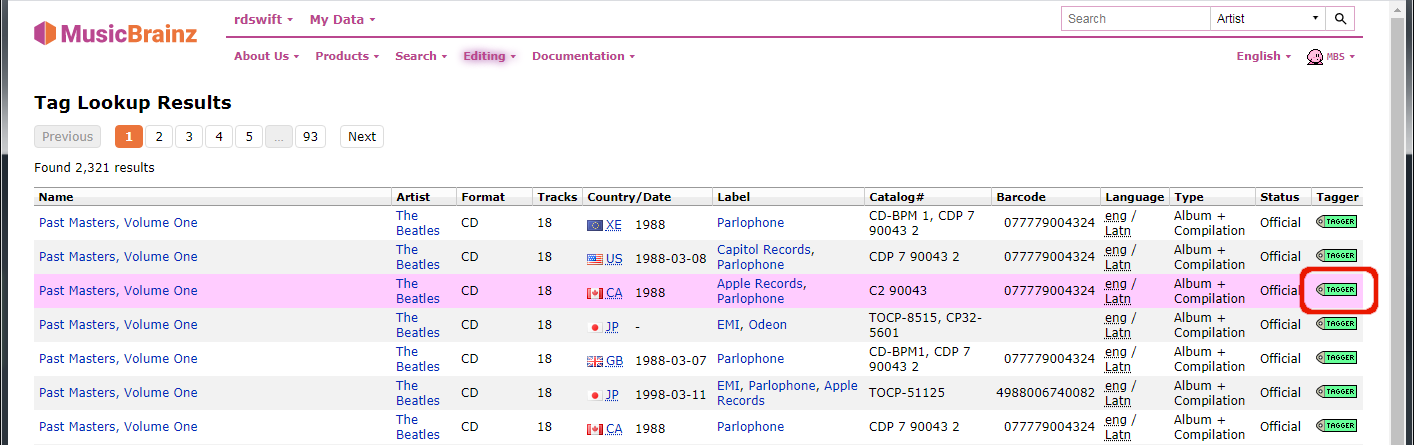
Step 7
A music symbol in front of a track number in the right-hand pane indicates that there has been no file assigned to the track.